How to disable Microsoft Copilot on Mac
getting around the sneaky little obstacle.

Like millions of others, I am not too happy about this new feature suddenly popping up in Word. It is pretty annoying, doesn’t make any good suggestions, and I don’t want it scraping my documents. But turning it off turned out to be a bit of detective work. So, I’m sharing what I found out.
The instructions you’ll find most places is telling you to go to File > Options, which doesn’t apply to Mac users at all. Or they say: go to Preferences > Copilot - but that doesn’t exist. The trick is that you have to turn off the scraping function first, restart, - and then CoPilot will appear under Preferences.
So – start out with this:
Word > Preferences > Privacy > uncheck the box > restart Word
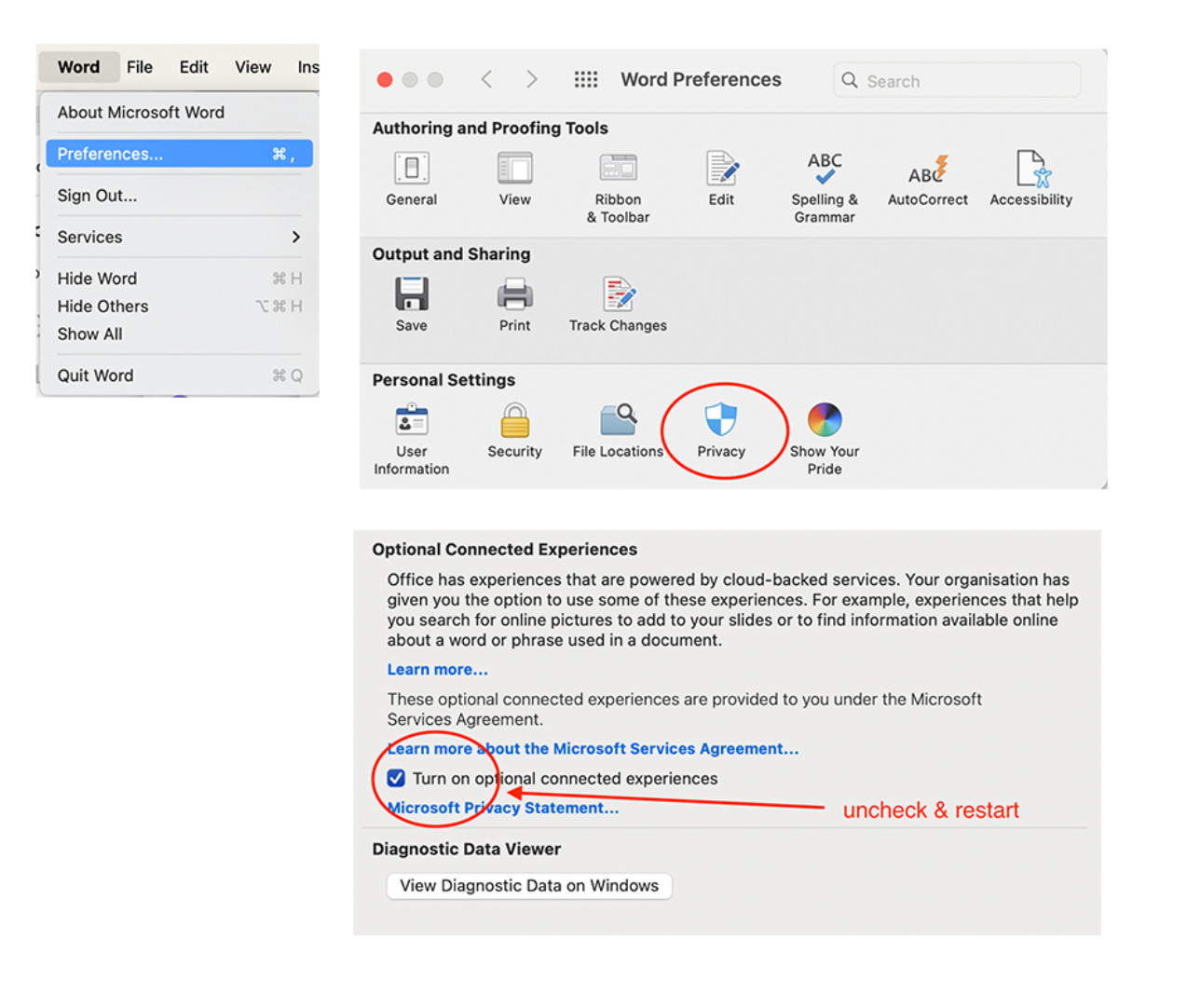
Only after doing this, and restarting, will you see the Copilot option in Preferences. Now you can choose to disable it.
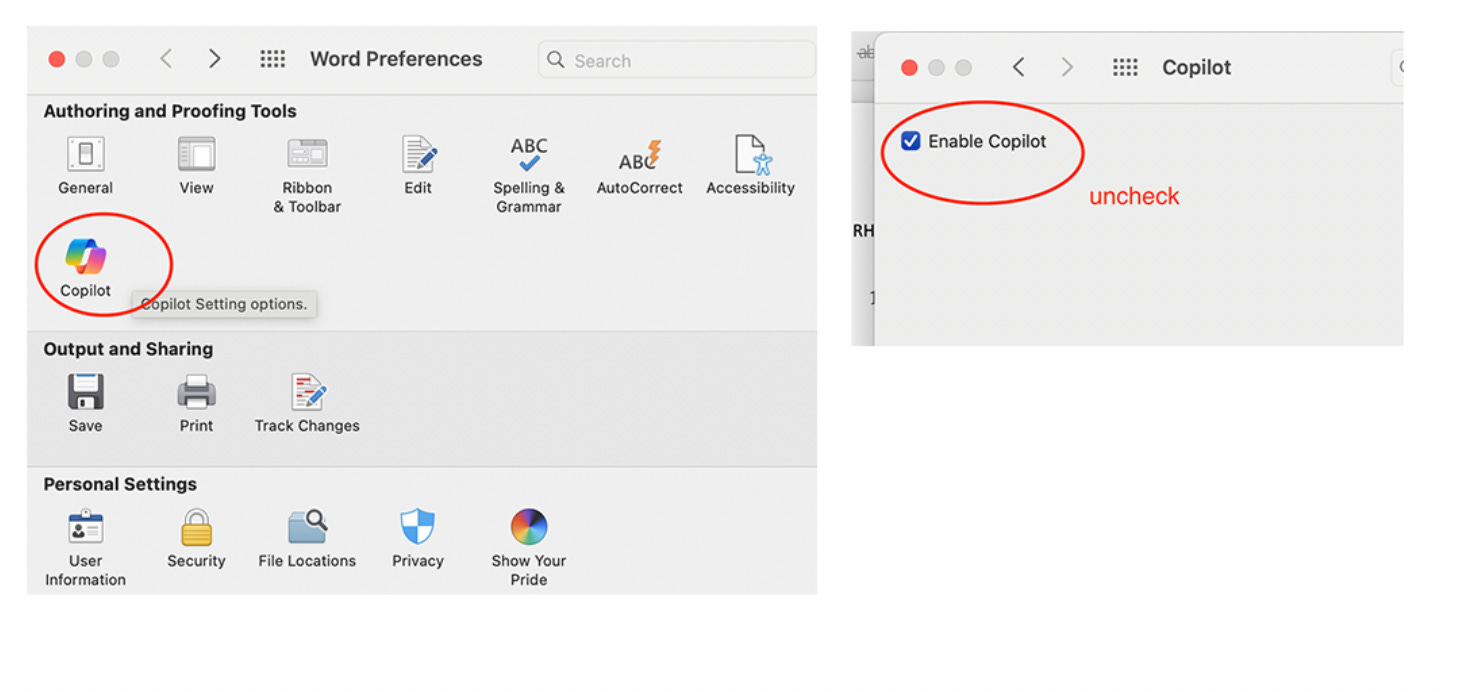
Voilá!
Hope this helps!